Archive 04 ・ Open fileArchived case study ・ Side project ・ 2020 –
Terminal Cheat Sheet
A plain, fast, accessible guide to everyday terminal commands, with live demos you can open, and a copy button where everyone’s cursor goes first.

- When
- October 2020 – today
- Role
- Lead UX researcher, lead UX designer, developer
- The work
- User research, wireframing, prototyping, development
- With
- Matt Joseph
The monsterThe problem
Everyone who learns the terminal ends up hunting for the same handful of commands. We wanted one place that explains them simply, loads instantly and works for everyone, as a companion to man pages and in-depth guides, not a replacement for them.
Static content wherever possible, for speed. Accessibility built in from the start, following WCAG.
The scouting reportResearch
I interviewed five people, recruited on Twitter, about how they use technical documentation.
- 4 of 5 said simplicity mattered most.
- 3 of 5 wanted live demos of each command.
- 1 of 5 was fed up with guides you have to download as a PDF. And it had to work on a phone.
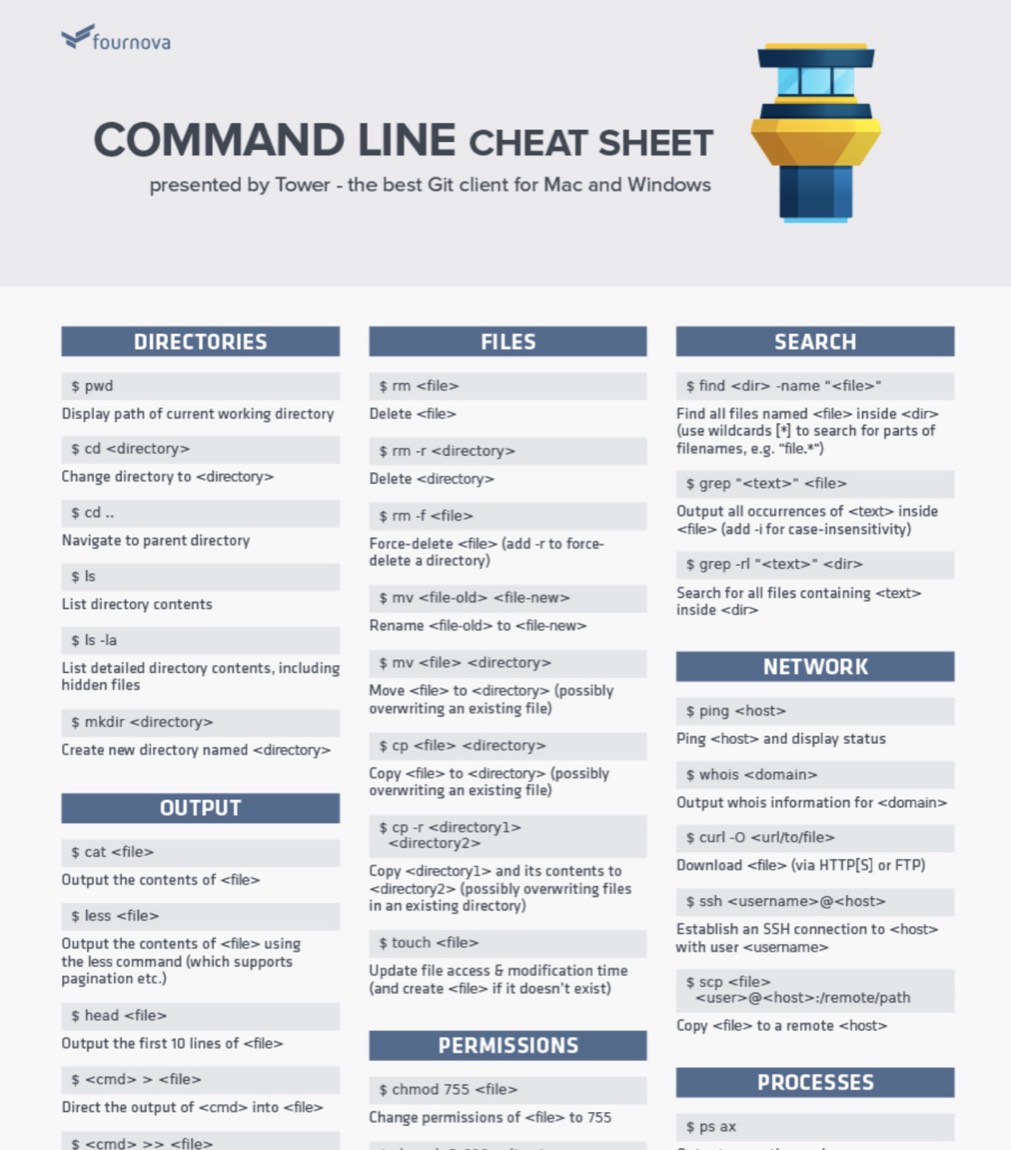
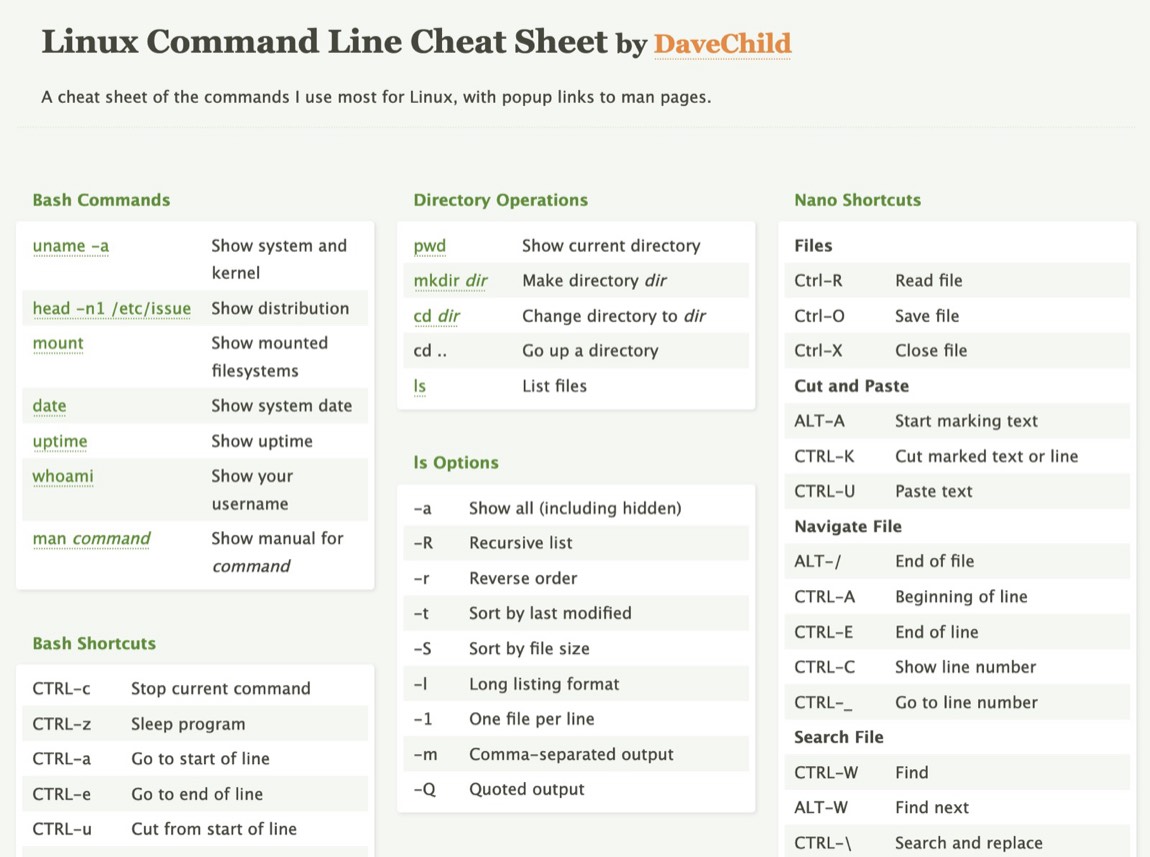
Two existing sites came close, Fournova’s Command Line Cheat Sheet and Dave Child’s Linux Command Line Cheat Sheet. Both categorised commands well. Neither had live demos, the thing most people asked for.
The game planSketches and wireframes
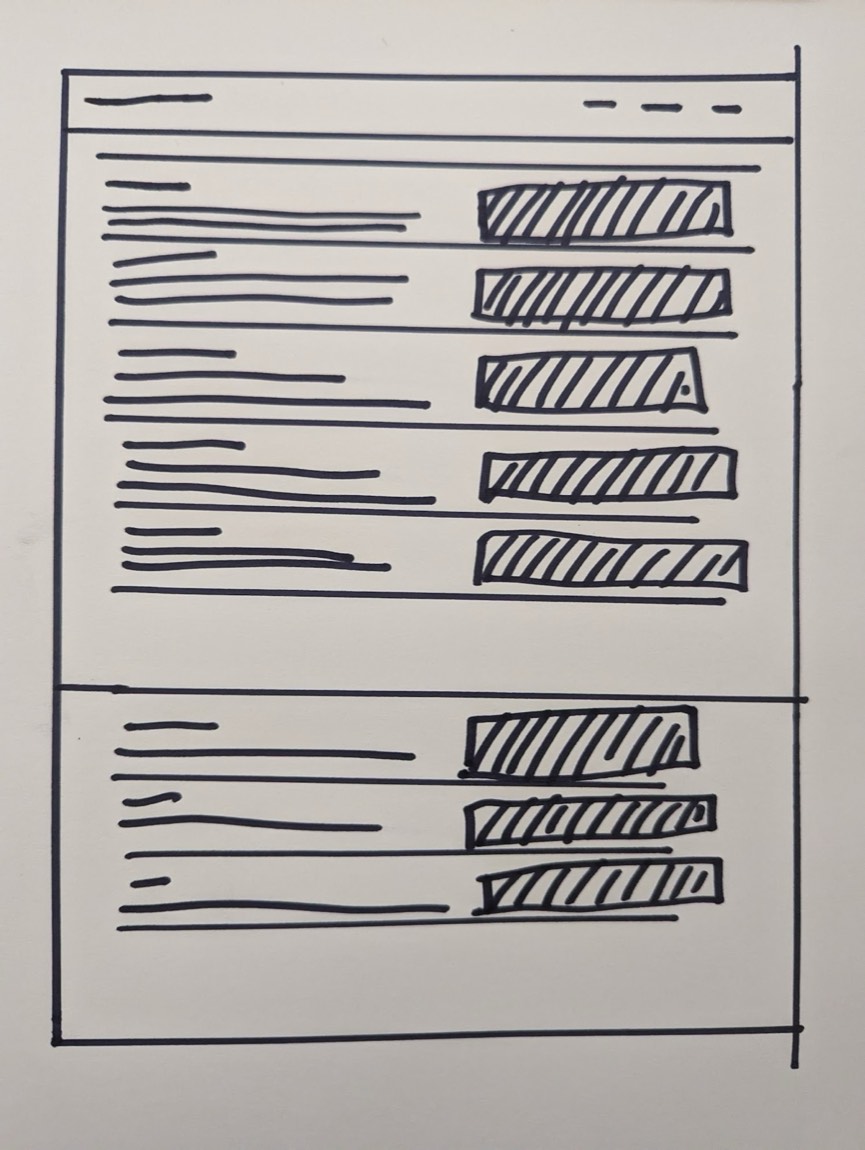
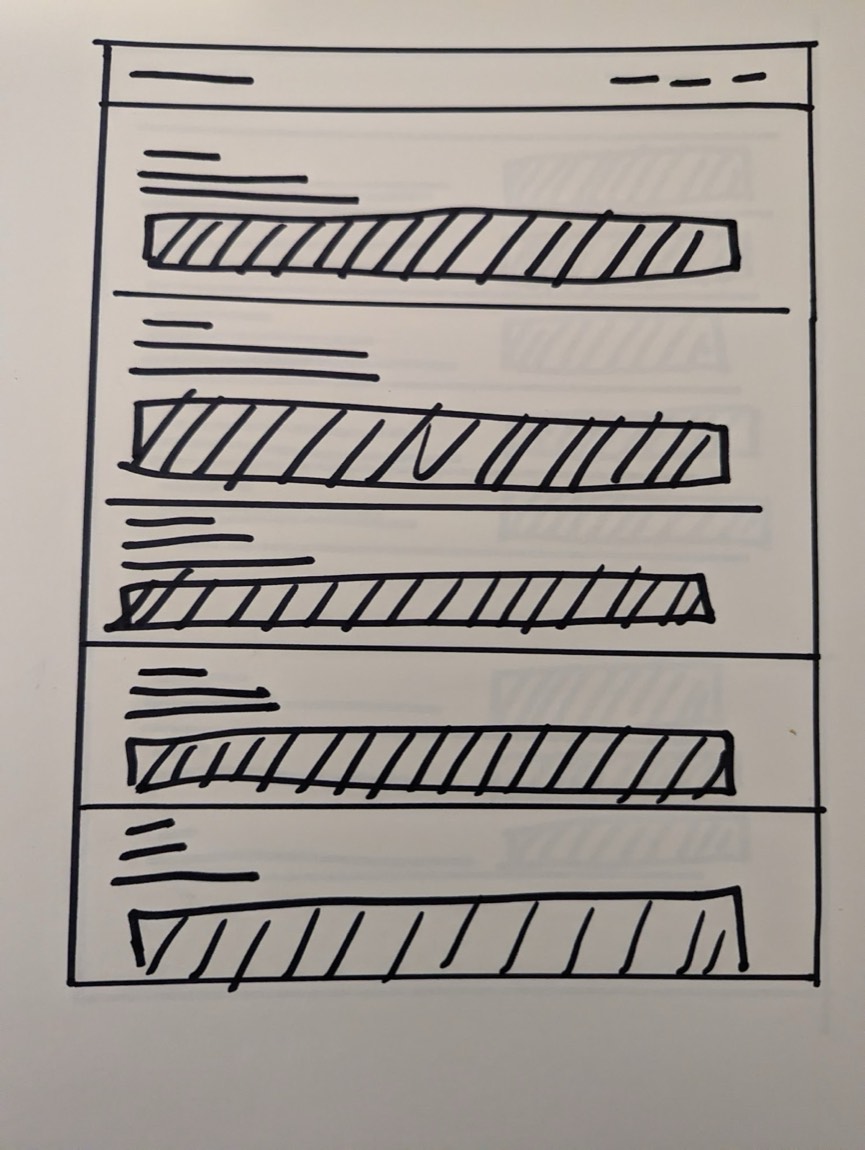
I sketched five rough ideas, then refined two. Both settled on a simple list of commands, with dashed boxes for the live demos. In Figma, the two digital wireframes differed in one thing: demo beside the text, or demo below it.
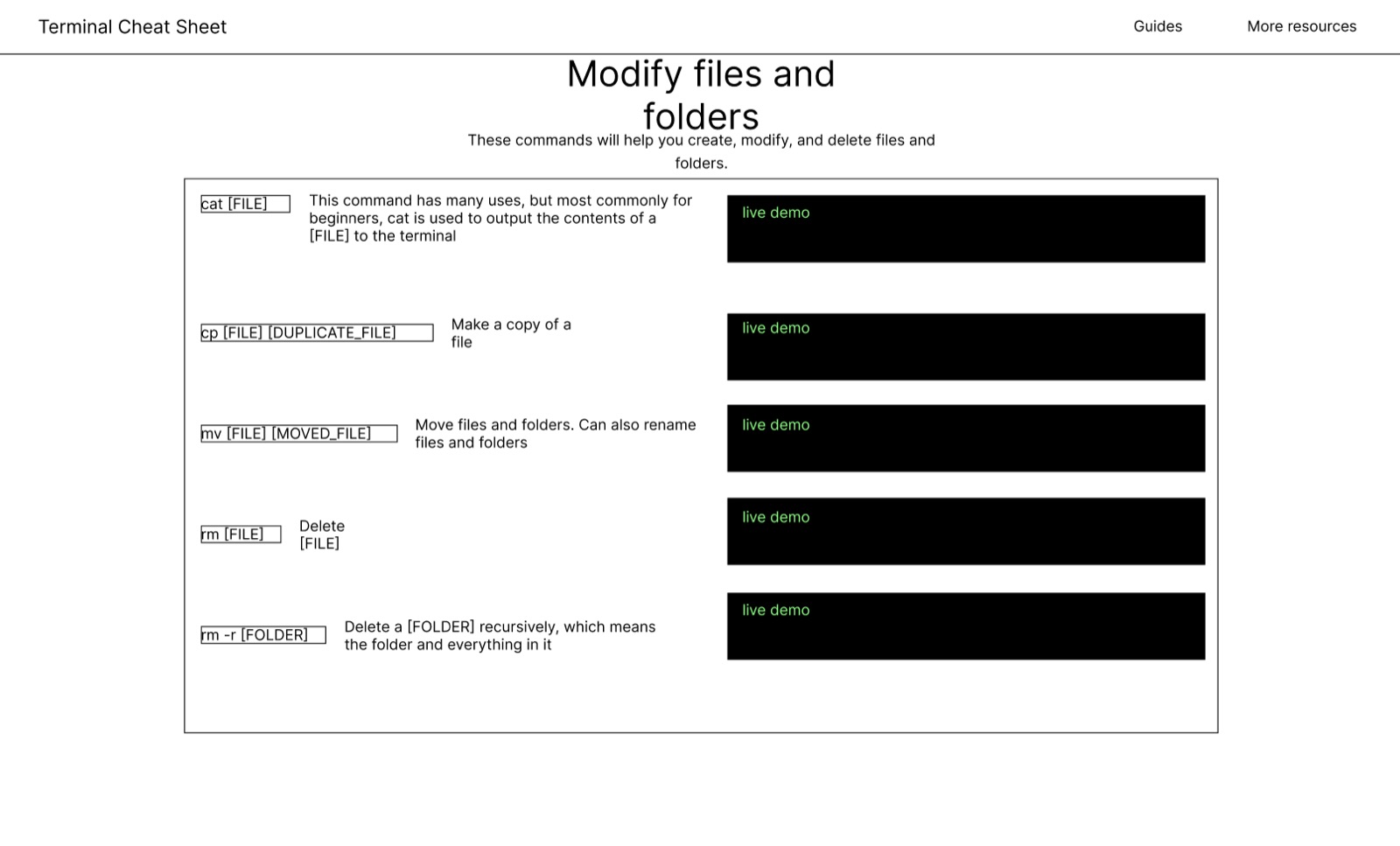
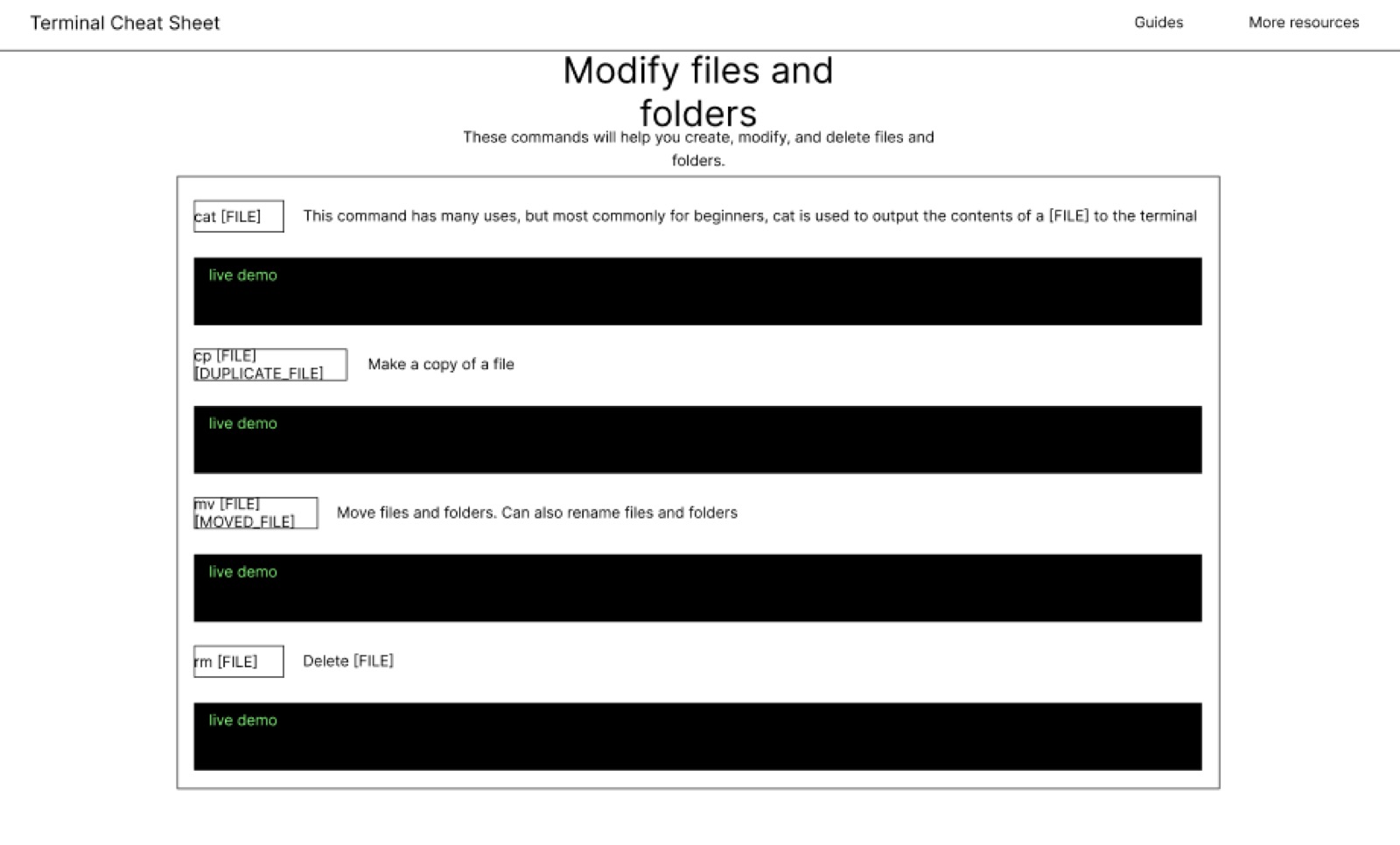
Then we watched people use them. Two things came out of it.
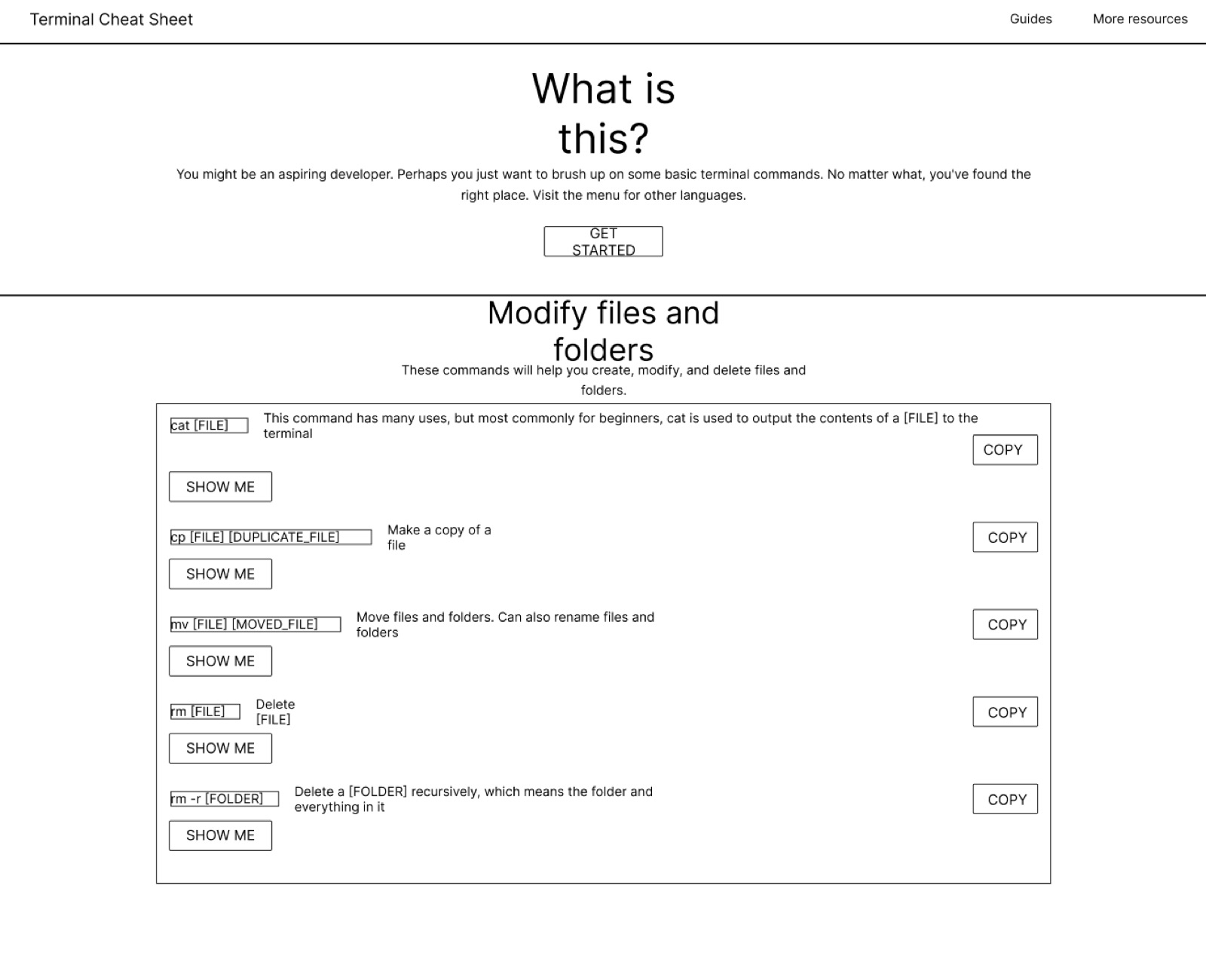
- Everyone copied first. All five users did the same thing the moment the session started: found a command and copied it.
- All the demos at once was too much. Helpful, but heavy on the eyes.
So every command got a Copy button, instead of click, highlight, right-click. And the demos tucked away behind a Show Me button.
The punchDesign and build
High-fidelity mockups in Figma, every colour checked for WCAG contrast with the Stark plugin. We added a language switcher too; between Matt and me, it launched with Arabic and Spanish.
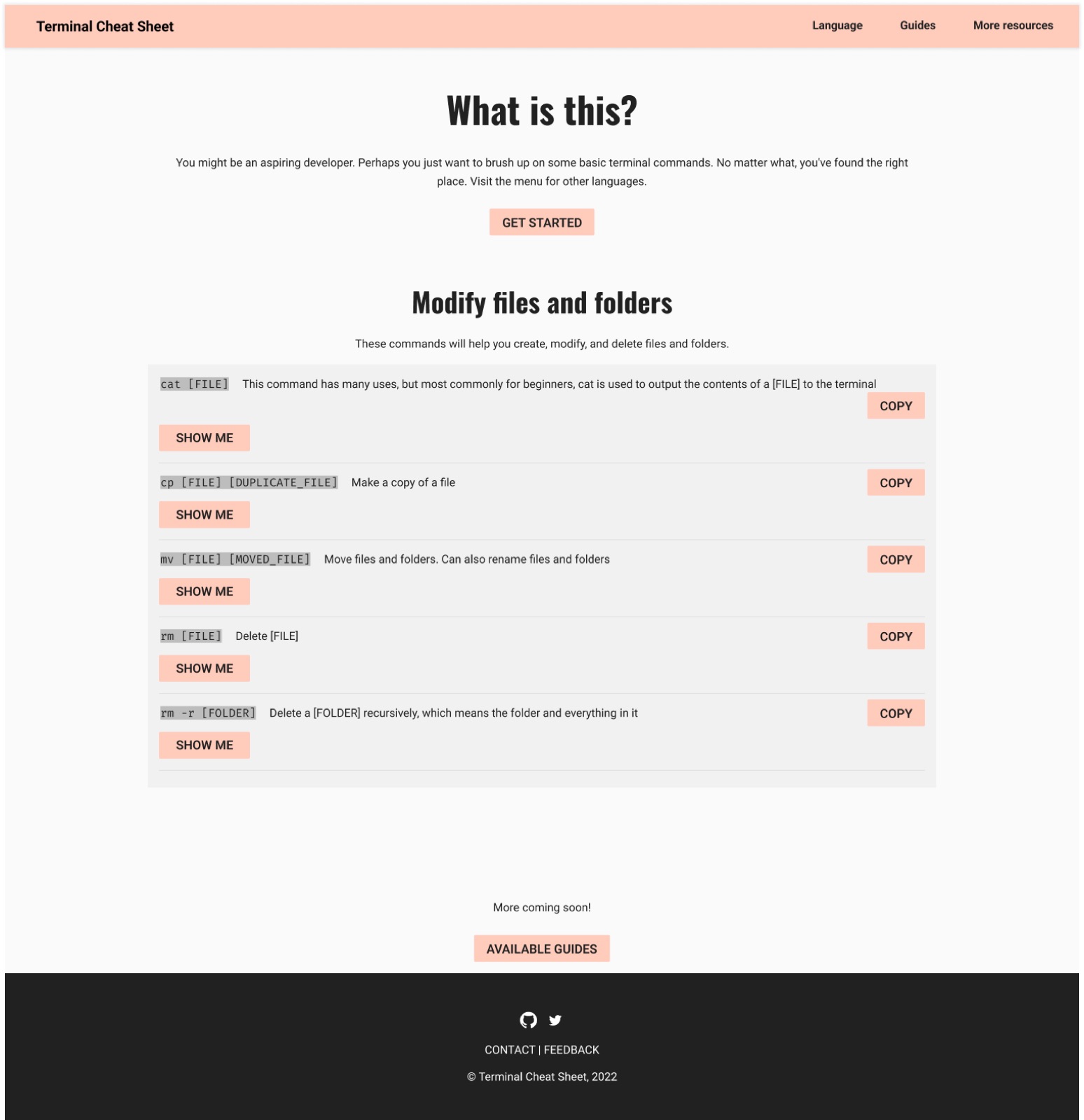
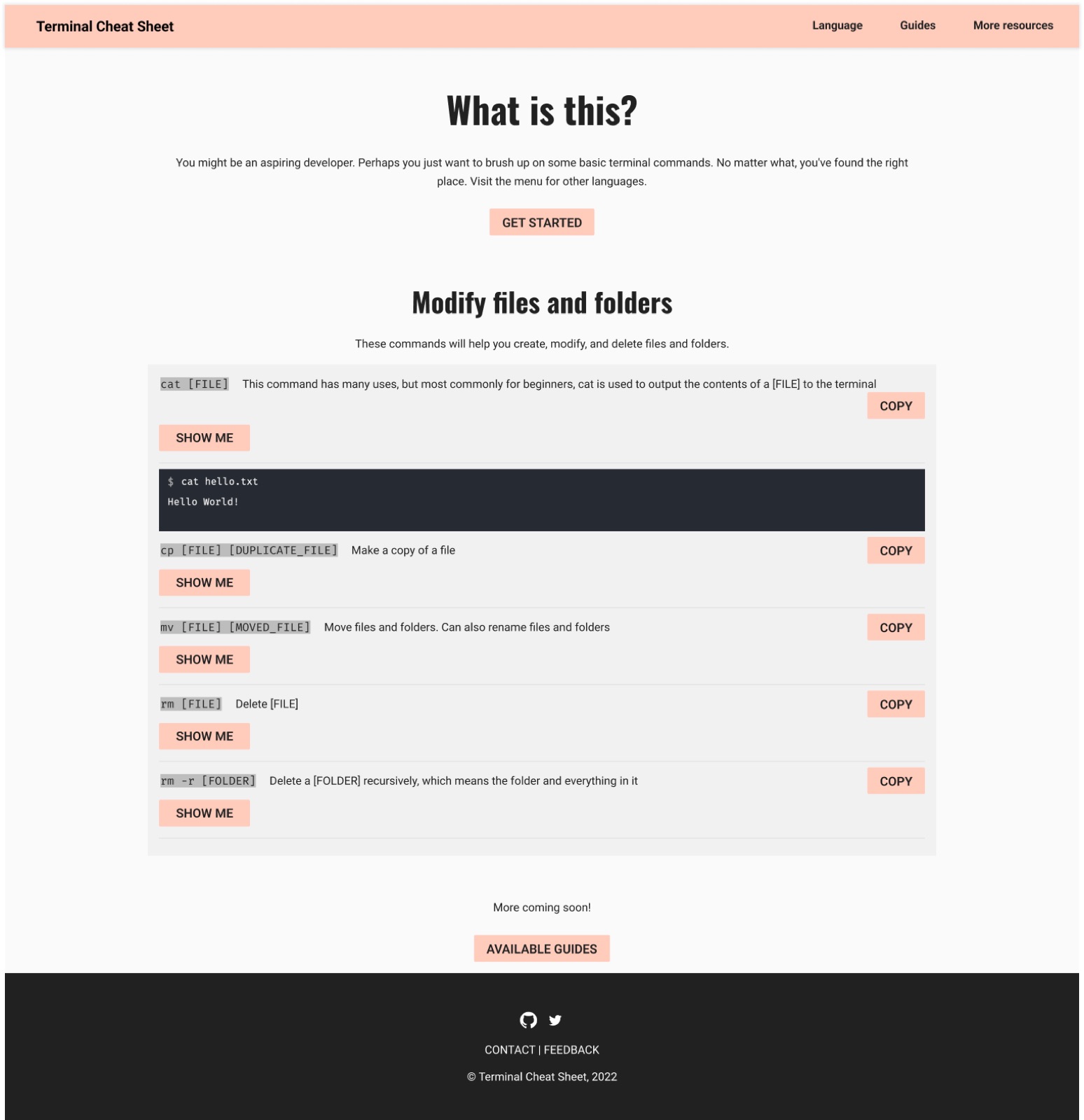
Built for speed: Jekyll on GitHub Pages behind Cloudflare, AMP to keep it fast and simple, PureCSS for the grid, Workbox for offline support, and a lightly modified Termynal for the animated demos.
The aftermathOutcome
- 3,000 clicks in a single month, in September 2022.
- 1 Microsoft tutorial citing it as the reference for curl and REST APIs.
Open source contributors have since translated it into more languages, French and Portuguese among them. Seeing it actually get used, and help people every day, was the most rewarding part.

RematchWhat’s next
Search. Keeping everything static made it fast, but it’s the obvious missing piece. After that: more commands, more guides, more languages.